JK BMS Not Connecting over Bluetooth: Fixes That Work
When a JK BMS is not connecting over Bluetooth, the cause is almost always one of five things: the BMS is asleep or off, another phone or app still holds the link, the phone lacks a permission, the distance is too large, or the browser or app cannot use Bluetooth at all. Check them in that order. Most people are connected again within a few minutes, and none of the fixes needs a reset.
How a JK BMS Bluetooth link works
A JK BMS does not pair like headphones. It advertises itself, and an app or browser connects to it directly for as long as it is open. Two consequences follow:
- You will not find it in the system Bluetooth settings, and you should not pair it there. If you paired it in the past, remove that entry: a stale pairing can block the app.
- Only one connection at a time. While one phone, tablet, ESP32 or app is connected, the BMS stops advertising and nobody else can see it.
The name in the device list usually starts with JK, followed by the model, or it shows the device name you gave it in the app.
Fix a JK BMS that is not connecting, step by step
1. Make sure the BMS is awake
A sleeping or powered-off BMS has no Bluetooth. Look at the board LED or the display. If it is dark, wake it with the power button, the display switch or by connecting a charger. If it falls asleep again after a day of standby, the cause is smart sleep: our smart sleep guide explains the setting and when to turn it off.
A BMS that shut down because a cell reached the power off voltage also looks dead. It needs a charger to start again.
2. Close every other connection
Fully close the JK app on every phone and tablet nearby, including apps running in the background. Stop any ESP32, Home Assistant bridge or Victron Bluetooth integration that talks to the same BMS. Then wait about ten seconds so the BMS starts advertising again.
This is the most common cause by far. If the BMS appears on one phone but not on another, something is still connected.
3. Grant the phone permissions
On Android the JK app and the browser need two permissions to see Bluetooth devices: Nearby devices and, on many phones, Location. Location services must also be switched on in the quick settings. Without them the scan simply finds nothing, with no error message.
On iPhone, check that the JK app is allowed to use Bluetooth in Settings, Privacy, Bluetooth.
4. Move closer
The Bluetooth module of a JK BMS has a short range, often only a few meters, and less through a metal battery box or a concrete wall. Stand next to the battery for the first connection. If the link drops while you edit settings, the distance is usually the reason.
5. Restart Bluetooth and the BMS
Turn Bluetooth off and on in your phone or computer. If the BMS still does not show up, restart the BMS itself: switch it off with the button, or briefly disconnect the battery if you know how to do that safely. Several forum users fixed a frozen Bluetooth module this way.
JK BMS not connecting in the browser
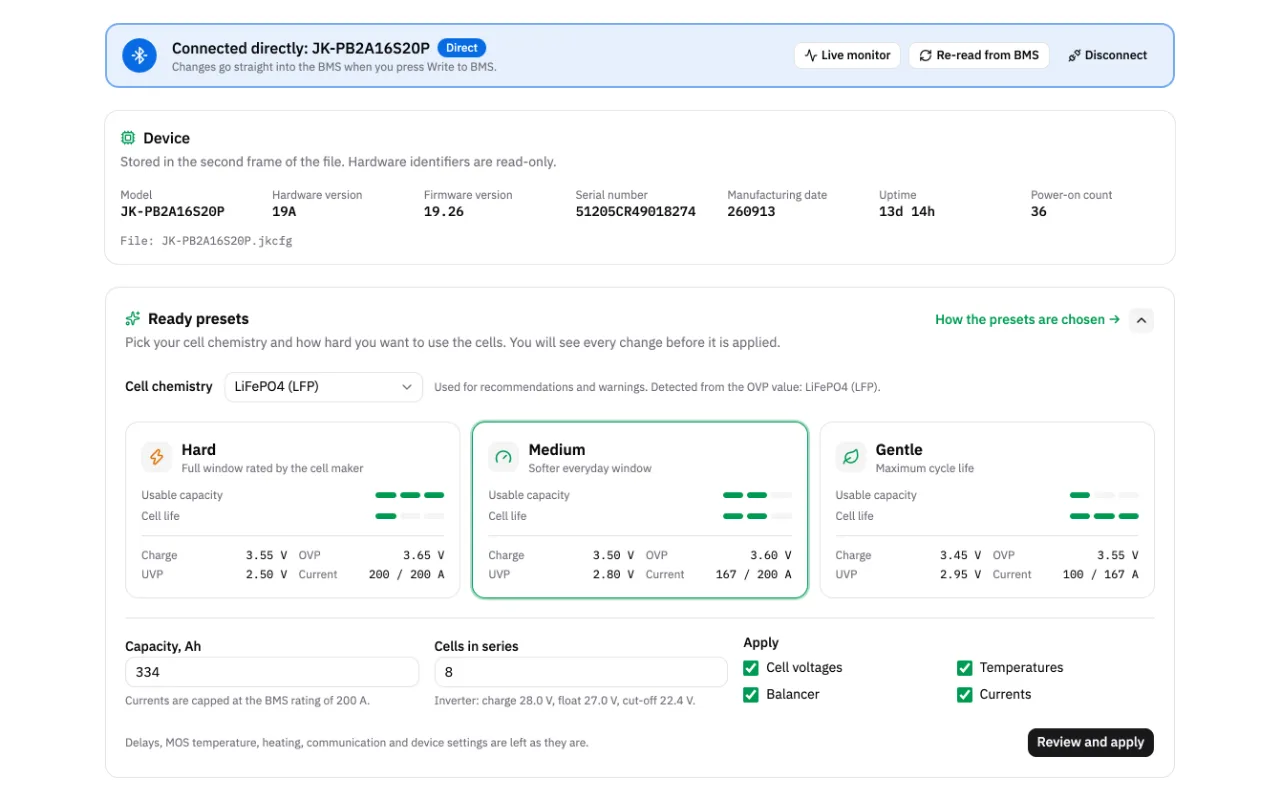
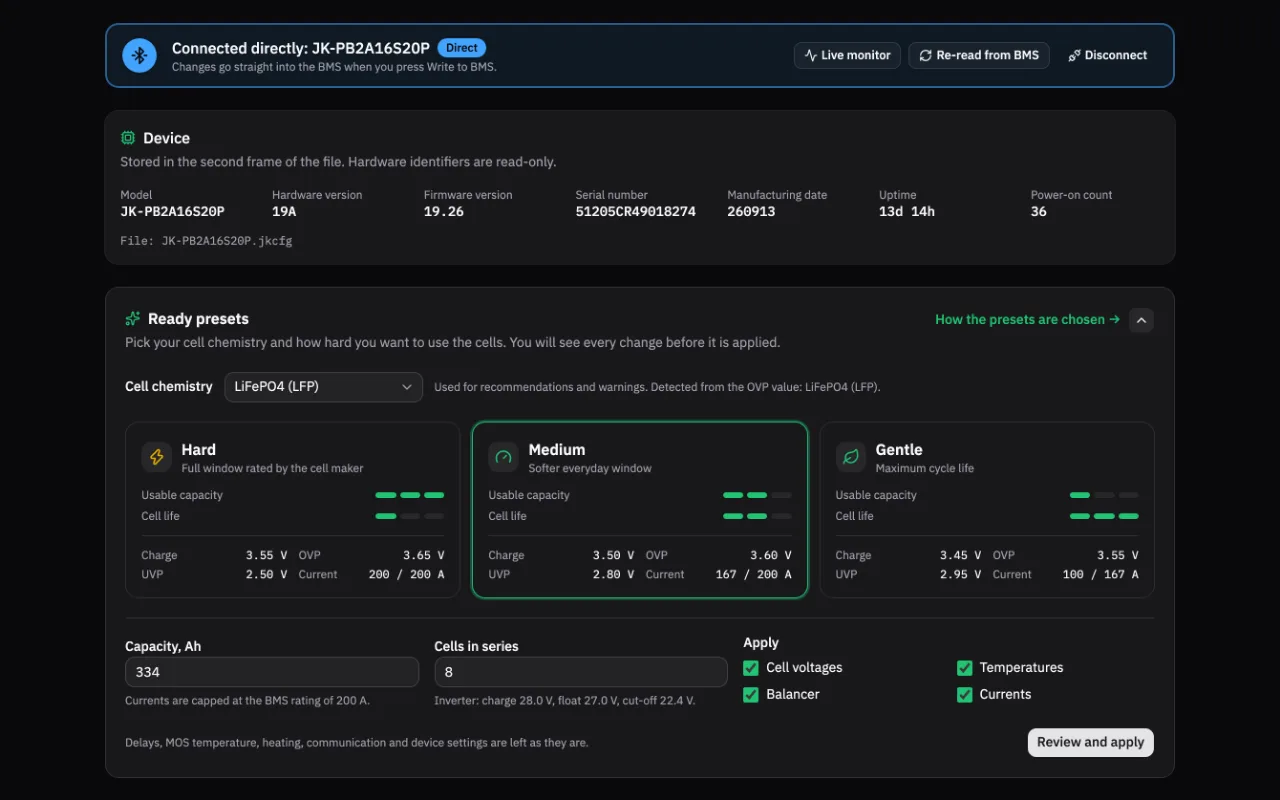
JK Preset Studio connects through Web Bluetooth, which needs Chrome or Edge on Windows, macOS, ChromeOS or Android. Firefox, Safari and every browser on iPhone and iPad have no Web Bluetooth, so the connect button will not work there. The app alternative guide compares the options for those devices.
When you press Connect BMS, the browser opens its own device list. Pick the entry that starts with JK. The messages you may see:
- No BMS selected. You closed the list without choosing. Try again and pick the BMS.
- Could not connect. The BMS was found but refused the link, usually because the JK app is still connected. Close it, move closer and try again.
- The BMS did not answer in time. The link opened but no data arrived. Move closer and reconnect.
- The Bluetooth connection dropped. Range or interference. Press Reconnect; your edits are kept.
On Windows, also check that the computer has Bluetooth Low Energy and that it is switched on. Some older USB dongles support only classic Bluetooth.
When it is not the connection
Sometimes the link works, but writing fails. That is a different problem:
- Sending failure in the JK app means the BMS refused a value. The Sending failure guide explains why.
- A password prompt that rejects your password is covered in the password guide.
- Settings that do not exist on your model are detected right after connecting in the browser and shown as missing, instead of failing on write.
FAQ
Why does my phone not see the JK BMS?
Most often another device is still connected, the BMS is asleep, or the phone lacks the Nearby devices or Location permission. Close the JK app everywhere, wake the BMS and check the permissions, then scan again.
Can two phones connect to a JK BMS at the same time?
No. The BMS accepts one Bluetooth connection. Close the app on the first phone before connecting with the second, or with a browser.
Do I have to pair the JK BMS in Bluetooth settings?
No. Connect from the JK app or from the browser only. If the BMS is listed in your system Bluetooth settings, remove it, because a stale pairing can stop the app from connecting.
What is the Bluetooth range of a JK BMS?
Plan for a few meters with a clear view of the board. Metal enclosures and walls cut it further, so stay close while you change settings.
Once it shows up in the list, connect your BMS and read every setting in under a minute.
Related guides
- Change JK BMS Settings over Bluetooth in Your BrowserConnect to a JK BMS from Chrome or Edge, read every setting, apply a preset and write it back in a safe order with read-back checks. No JK app needed.
- JK BMS App Alternative: Change Settings from Your PC or BrowserLooking for a JK BMS app alternative? Compare the JK app, the PC monitor software, ESPHome and a browser editor that reads and writes settings over Bluetooth.
- JK BMS Smart Sleep: What the Voltage and Time Settings DoWhat JK BMS smart sleep does, how the smart sleep voltage and time work together, how to wake a sleeping BMS and which values to use for home storage or a camper.
- JK BMS Password: Default Codes, Change and Reset GuideYour JK BMS password is really two codes: Bluetooth and settings. See factory defaults, how to change them, what to try if one fails, and what to do if lost.